

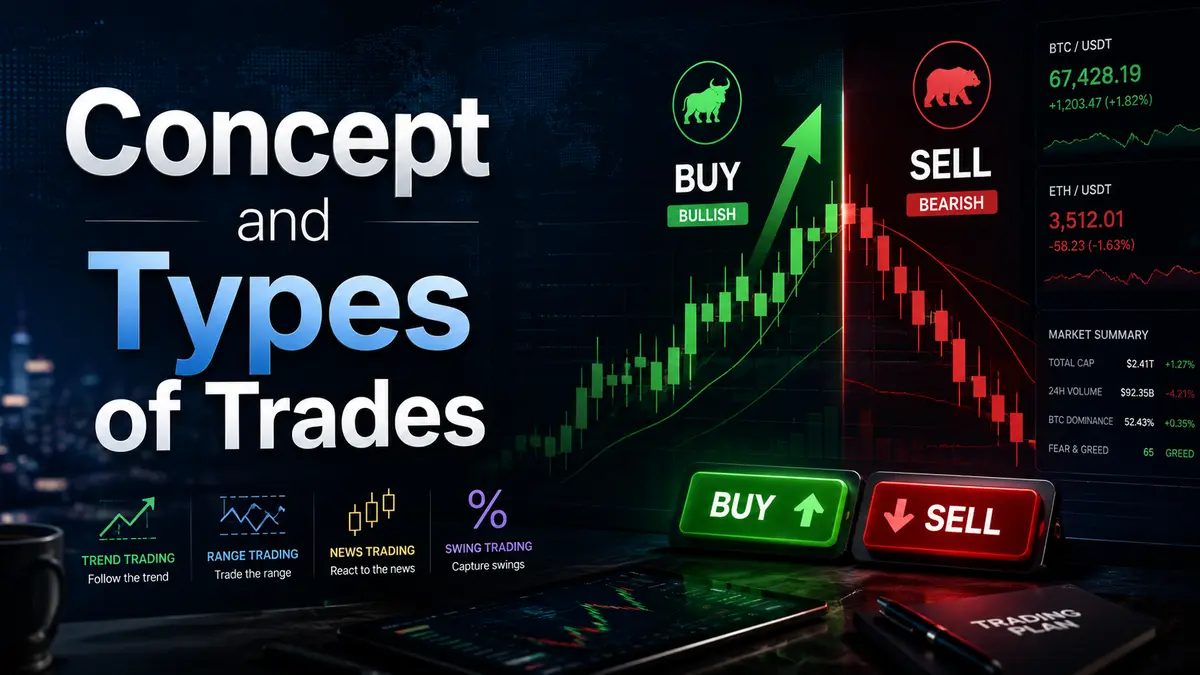
Concept and Types of Trades
Opening Positions
Executing a trade (opening an order).
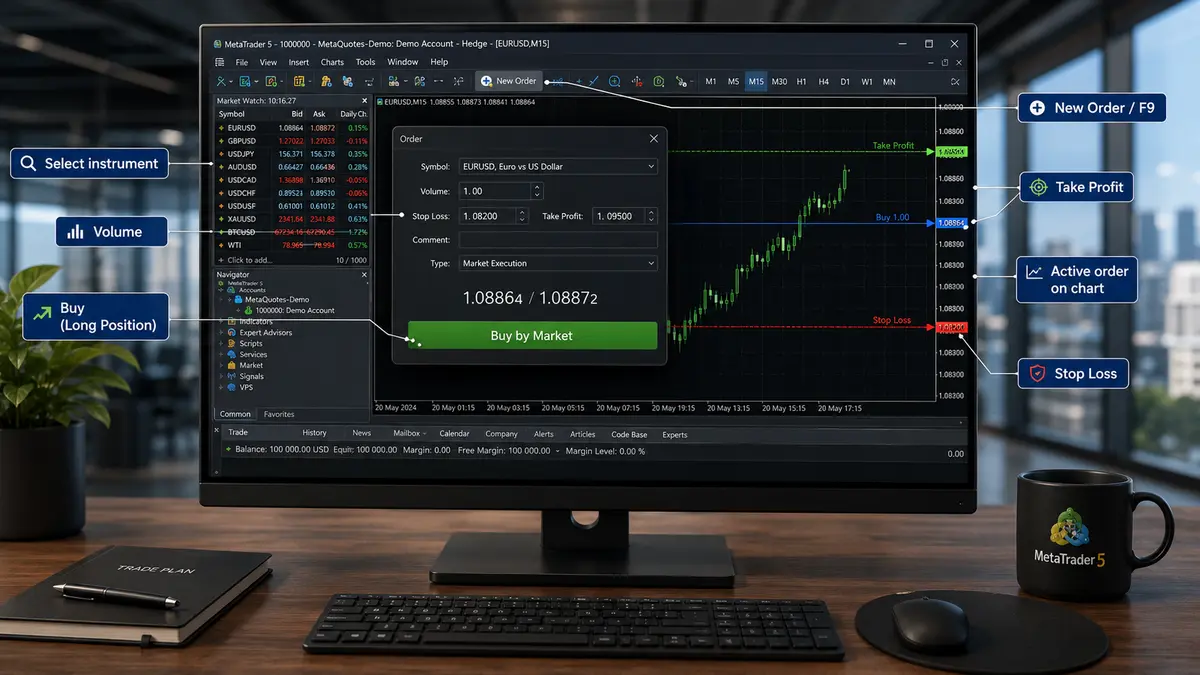
To execute a trade, select an instrument with a mouse click and click “New Order” in the top toolbar, or simply press the F9 key.
The Buy and Sell buttons allow you to place an order (instruction) to buy or sell the corresponding instrument. Volume represents the number of contracts or fractions of contracts you are entering into.
Placing a New Buy Order
A Buy trade (long position) is a trading operation in which a trader or investor purchases a financial instrument — such as a stock, currency pair, commodity, or another asset — with the goal of making a profit in the future from its price appreciation.
Key Aspects of a Buy Trade:
-
Goal: The primary goal of a Buy trade is to purchase an asset at a lower price and sell it in the future at a higher price, thereby generating a profit.
-
Usage: A Buy trade is used when a trader expects the asset’s price to rise. This is known as a bullish position, as buyers are confident in market growth.
Step-by-step process:
-
Select a trading instrument: Clicking the arrow allows you to choose an instrument from the complete list.
-
Choose a new buy order.
-
Select the number of lots: Clicking the arrow allows you to choose the lot size. The default standard is 1.00 Lot(s).
You can also apply protection tools to your trade:
Take Profit (T/P): A trading tool used in financial markets to automatically close a position when the price reaches a pre-determined profit level. Essentially, it is an order placed on the brokerage platform to lock in profits once a certain price is hit.
Stop Loss (S/L): A trading tool used to automatically close a position to limit losses if an asset’s price moves in an unfavorable direction. This order helps traders minimize losses in the event of a sharp price drop.
Now you can confidently place the order.
Once the order is placed, you will see the following on the chart: a visual representation of the active order. You can also modify the Stop Loss and, in this case, the Take Profit by dragging the slider up or down.
Placing a New Sell Order
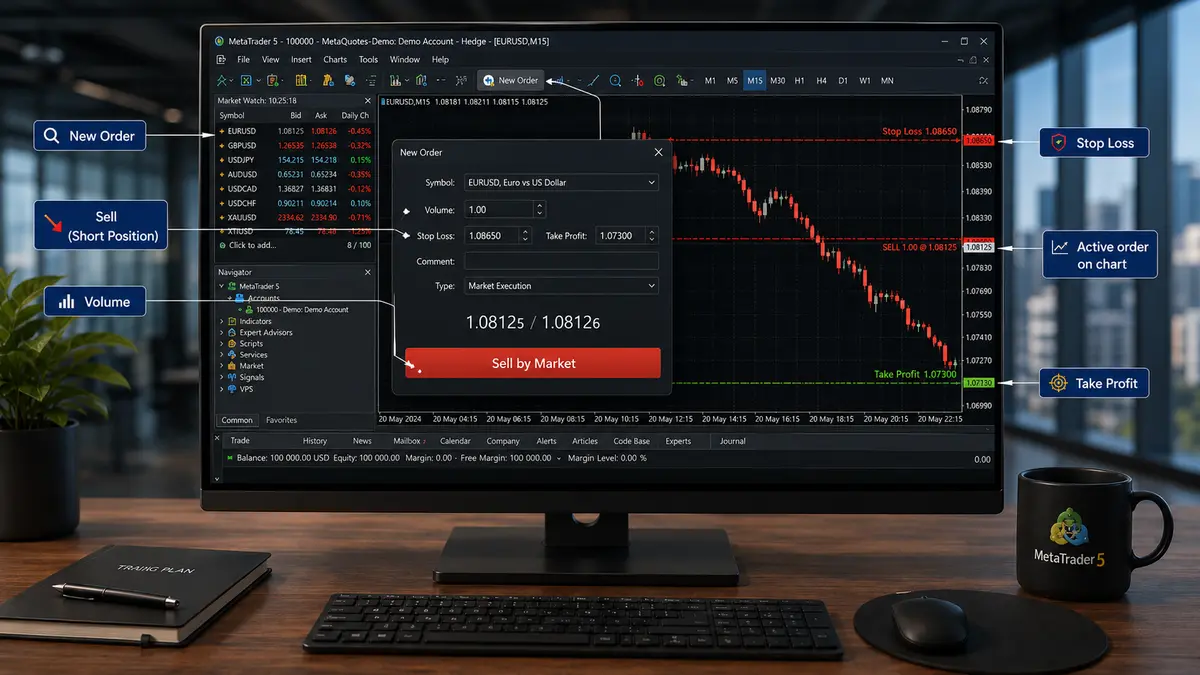
A Sell trade (short position) is a trading operation in which a trader or investor sells a financial instrument—such as a stock, currency pair, commodity, or another asset — to lock in a profit or minimize losses.
Key Aspects of a Sell Trade:
-
Goal: A Sell trade can be executed to lock in profit if the asset’s price has already risen since the purchase, or to minimize losses if the trader expects the price to drop further.
-
Usage:
-
Closing a Long Position: If a trader already owns an asset (e.g., bought a stock earlier), a Sell trade is used to close the position and realize a profit or loss.
-
Opening a Short Position: A Sell trade can also be used to open a short position. In this case, the trader sells an asset they do not yet own by borrowing it, expecting the price to fall. Later, they can buy it back at a lower price to return the borrowed asset, profiting from the difference.
-
What is a CFD “Sell” Trade?
A CFD (Contract for Difference) is an agreement between two parties — a buyer and a seller — to exchange the difference between the current value of an asset at the time the contract is opened and its value when the contract is closed. This type of contract has no expiration date and can be terminated at the request of just one party granted this right.
Essentially, CFDs are derivative financial instruments based on an underlying asset, allowing traders to profit from both rising and falling prices of the underlying commodity or security.
Step-by-step process:
-
Open the “New Order” window just like before.
-
Choose a “Sell” trade (order).
-
Select the lot size, set the Stop Loss and Take Profit, and place the order.
Below is an illustration of how it appears on the chart.
Alternative Methods for Placing an Order
Another option is to hover your cursor over the buy/sell panel (Quick Trading window).
-
Select the lot size.
-
Choose the direction of the new trade:
-
Buy – an order to purchase.
-
Sell – an order to sell.
-
Once the trade is selected, it will automatically display on the chart. To set protection like Stop Loss and Take Profit in this mode, hover over the sliders on the left.
Next method of opening a trade.
Bid and Ask Lines
Two lines are displayed in the workspace:
-
The Ask line (sell) is shown in green.
-
The Bid line (buy) is shown in red.
The difference between these lines is the broker’s commission (spread). When opening either a Buy or Sell trade, a commission will be charged by the broker.
When opening a Buy trade, the order opens at the Ask line. When opening a Sell trade, the order opens at the Bid line.
Understanding the Trading Window
Every new trade will initially show a negative balance because the price hasn’t changed yet, but the broker has already deducted the commission. This is completely normal — don’t be alarmed.
The illustration above shows a Buy trade opening. The moment the buy line crosses the green dashed line, the trade will turn positive and start generating profit. This process works exactly the same way for Sell trades.
Every trade (order) is assigned an order number, time, type, volume, symbol, price, T/P, S/L, swap, and profit.
Each order has three icons on its left:
-
Trade Information
-
Trade Protection Settings
-
Trade Settings (direction, lot size, etc.)
Let’s look at each window individually below.
Trade Information Window
In this window, you can view detailed information about the trade.
Trade Protection Settings
Here, you can enable advanced protection for your active trade.
Trade Settings
In this window, you can adjust the number of lots (either decrease or increase the amount), change the trade direction, and set Stop Loss and Take Profit levels.
Core Trading Parameters
-
Order Number (Ticket): You can open an infinite number of trades on a single instrument (for example, the S&P 500). The unique number helps prevent confusion among them.
-
Time: Reflects the exact date and time the order was opened.
-
Type: Indicates the direction in which you opened the order (Sell or Buy).
-
Symbol: Shows the specific trading instrument involved.
-
Price: The locked-in value from which the price difference will be calculated when opening a Sell or Buy order.
-
Stop Loss (S/L) and Take Profit (T/P): Crucial elements. When these values are reached, your trade will automatically close — either with a planned loss in the first case, or a planned profit in the second.
-
Profit: Displays the current earnings or losses, automatically converted into your account’s base currency.

Comments
No comments yet. Be the first to share your thoughts!
Authentication Required
You must be logged in to post a comment.