

The Trading Platform I Use

MetaTrader 5 (MT5) is one of the most powerful and popular trading platforms used by traders worldwide to trade on financial markets. One of the key aspects of successfully using MT5 is configuring the platform correctly. Below, we will cover the main general settings that will help you fully adapt MetaTrader 5 to your trading needs and enhance your trading experience.
How to Access the Stock Market via MetaTrader 5
Downloading and Installing MetaTrader 5
-
Go to the official MetaQuotes website: Open your web browser and visit the official MetaQuotes website at https://www.metatrader5.com/.
-
Select the “Trading Platforms” section: In the site menu, choose the section listing the available trading platforms.
-
Download MetaTrader 5: Click the “Download” button to start downloading the installation file. Select the version compatible with your operating system (Windows, macOS, Linux).
Installing MT5
-
Run the installation file: Locate the downloaded file in your downloads folder and run it.
-
Follow the installation wizard instructions: Follow the step-by-step instructions upon launching the installer.
-
Complete the installation: Once the installation is complete, click “Finish” to launch MetaTrader 5.
Configuring the MetaTrader 5 Trading Terminal
Logging into Your Trading Account
-
Launch MT5: Open MetaTrader 5 using the desktop shortcut or the Start menu.
-
Select “File” → “Login to Trade Account”: In the window that opens, enter your trading account details provided by your broker (account number, password, and server).
-
Click “Login”: After successfully entering the data, you will be logged into your trading account.
Interface Setup
-
Workspaces: Create and configure workspaces for different types of analysis and trading. This allows you to quickly switch between various instruments and timeframes.
-
Chart Windows: Open the necessary number of chart windows to monitor different instruments. You can also customize their appearance by adding indicators and changing the chart type (candlesticks, bars, lines).
-
Toolbars: You can customize the toolbars by adding the necessary buttons and tools for quick access.
Adding Indicators and Analytical Tools
-
Click “Insert” → “Indicators”: Select the desired indicator from the list.
-
Configure parameters: Adjust the indicator parameters as you see fit and add it to the chart.
-
Adding custom indicators: Additionally, you can download and install custom indicators from the internet, installing them via the Navigator window.
Setting Up Trading Signals and Alerts
-
“Toolbox” window → “Trade” tab: Here you can see all active orders and positions.
-
Adding alerts: In the “Toolbox” window, go to the “Alerts” tab and add new alerts to stay informed about important market movements.
Activating Trading Robots (Expert Advisors)
-
Navigator → Expert Advisors: Drag and drop the desired Expert Advisor onto the chart.
-
Configuring parameters: Adjust the Expert Advisor’s parameters and click “OK”.
-
Starting automated trading: It is important to ensure that the “Algo Trading” button on the toolbar is activated.
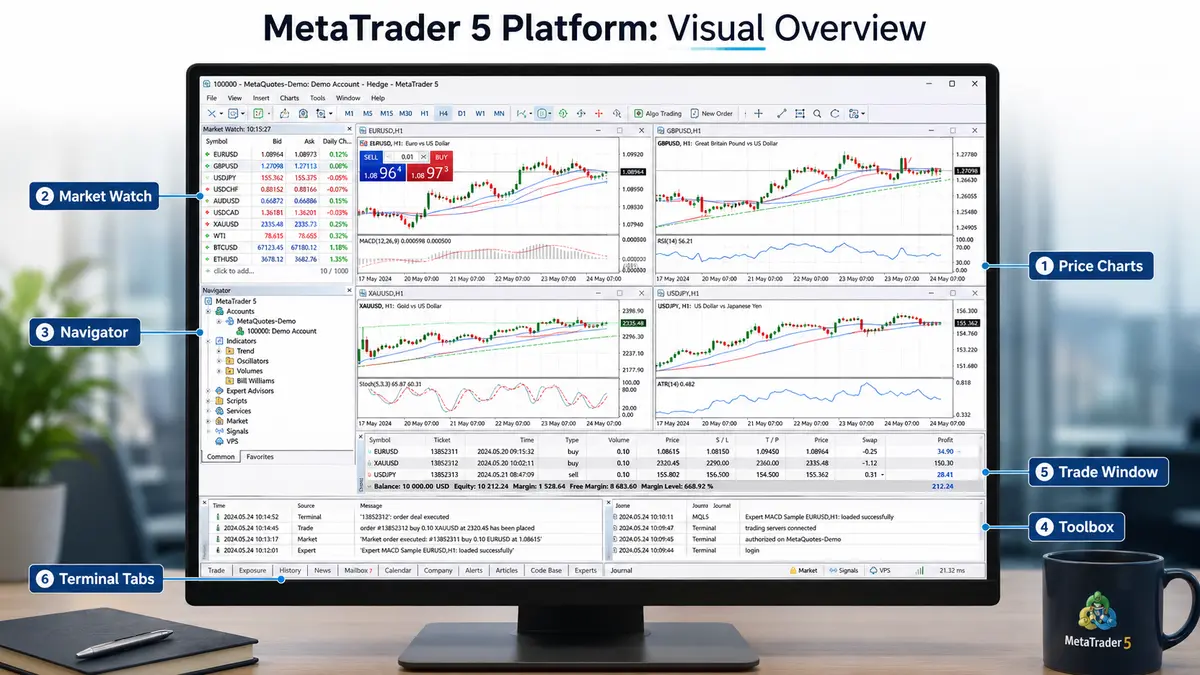
MetaTrader 5 Platform: Visual Overview
When launching MT5, the user is presented with the main screen, which can be divided into several primary sections:
-
Price Charts: This is the main window of the platform where charts of various financial instruments are displayed. Charts can be presented in different formats: line, bar, or Japanese candlesticks. You can overlay indicators, draw trend lines, and use other analytical tools on the charts.
-
Market Watch: Located to the left of the charts, this window contains a list of trading instruments along with their current quotes. Here, a trader can select currency pairs, stocks, indices, and other assets of interest.
-
Toolbox (Overview Window): This window displays the status of open orders, the trade journal showing trading history, and a mailbox for notifications from the broker.
-
Navigator: The Navigator window provides access to accounts, indicators, Expert Advisors, and scripts. This window allows you to easily switch between different accounts and tools.
-
Trade Window: Located at the bottom of the platform, this window displays current trades. It shows orders and positions, available balance, margin information, and more.
-
Terminals: A wide range of different terminal tabs, such as “Orders” and “History,” helps the trader monitor their financial operations and analyze trading results.
Toolbar
The upper part of the toolbar provides quick access to the main platform functions. Here you can find:
-
Chart control buttons: Tools for changing the chart zoom, adding indicators, and applying graphical objects.
-
Trading operations: Buttons for opening new orders and executing various types of trading operations.
-
Window settings: The ability to change the window display and customize them to your needs.
Settings and Customization
MetaTrader 5 provides numerous options for personalizing your workspace. A trader can adjust the appearance of charts, change color schemes, add custom indicators, and export data. These features allow you to adapt the platform to your personal preferences, making your work not only efficient but also comfortable.
How to Set Up the MetaTrader 5 Platform
One of the first steps to take after installing the platform is adding the necessary assets and setting up charts for effective analysis and trading.
Adding Required Assets
Market Watch: The Market Watch window is the central place to see all available symbols and quotes in real time. To open this window, click the Market Watch button in the top toolbar or use the Ctrl+M shortcut.
Adding new assets:
-
Right-click in the Market Watch and select “Symbols”. A window will open with a list of all available instrument groups.
-
Find the desired asset in the corresponding group (e.g., Forex, stocks, commodities, etc.).
-
Click on the asset and select “Show Symbol” to add it to the Market Watch list.
Using search: If you cannot find the required asset, you can use the search bar at the top of the Symbols window. Enter the name or ticker of the asset to quickly find and add it.
Opening a Chart
-
To open a chart for any asset, right-click the symbol in the Market Watch and select “Chart Window”.
-
The chart will open in a separate window, allowing you to begin analyzing it immediately.
Selecting the Chart Type
In the top toolbar, click on the Bar Chart, Line Chart, or Candlesticks icon to select your preferred data display type.
Adding Indicators and Analytical Tools
Indicators and analytical tools help you analyze the market more deeply and make informed trading decisions.
Adding indicators:
-
In the top menu, select “Insert” -> “Indicators”, then choose the required indicator from the list of categories.
-
The indicator settings window will open, where you can change the default parameters and color schemes.
Technical analysis:
-
You can add linear and graphical analysis tools, such as trend lines, channels, and Fibonacci levels, using the “Insert” -> “Objects” menu.
Templates and Profiles:
-
Templates: You can create templates to save specific chart settings. For example, after setting up a chart, click “Charts” -> “Template” -> “Save Template…”.
-
Profiles: Profiles allow you to save a complete set of workspace settings, including the arrangement of charts and windows, enabling you to switch between profiles via “File” -> “Profiles”.
How to Execute Trades in MT5
To analyze an asset before entering a trade, you need to open its chart.
Opening a Chart
-
Right-click the desired asset in the Market Watch and select “Chart Window”.
-
The chart will open in a new tab and can display various timeframes.
Market Analysis
Before executing a trade, you must conduct market analysis to determine an appropriate entry point.
Technical analysis:
-
Use built-in indicators and analytical tools. You can add them via the “Insert” -> “Indicators” menu.
-
Apply trend lines, support, and resistance levels to identify potential entry points.
Fundamental analysis:
-
It is important to follow economic news and events to understand how they might affect the market. This information can be found in the Economic Calendar section on the platform or on your broker’s website.
Executing a Trade
After conducting your analysis and determining an entry point, you can execute a trade.
Opening an order:
-
In the top menu, select “New Order” or press F9.
-
In the “Order Type” window that appears, select “Market Execution” for an immediate trade or a pending order (Limit or Stop) to open a trade when a specific price is reached.
Entering parameters:
-
Trade volume in lots.
-
Stop Loss and Take Profit levels to automatically close the trade when specific prices are reached.
Confirming the order:
-
Double-check all parameters and click “Buy” or “Sell” depending on your trading strategy.
Managing an Open Position
After opening a trade, it is important to monitor its status and manage risks.
Position monitoring:
-
At the bottom of the platform, in the “Toolbox” -> “Trade” tab, all open positions and orders are displayed. Here you can track your current profit or loss.
Modifying an order:
-
To change the Stop Loss and Take Profit levels, right-click the open position and select “Modify or Delete Order”.
Closing a position:
-
To close a trade, right-click the open position in the “Trade” window and select “Close Order”. You can also double-click the position and click “Close” in the confirmation window that opens.
MetaTrader 5 for iOS and Android
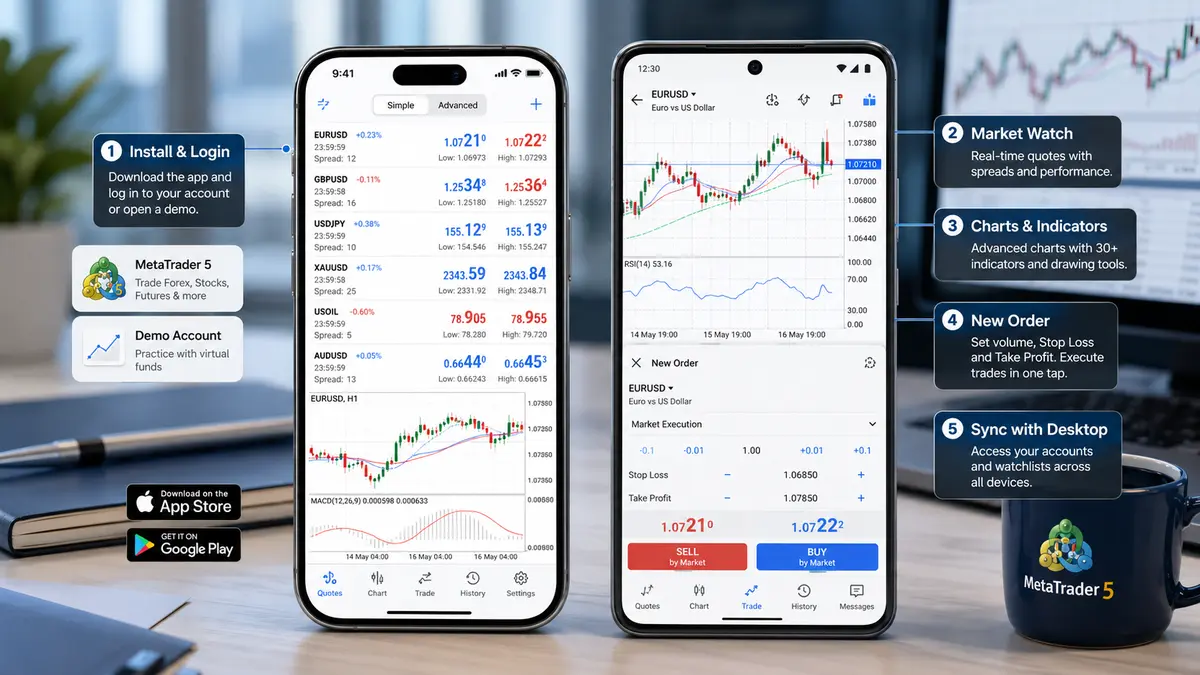
The first step is to install the MetaTrader 5 mobile app, available for both iOS and Android.
Installation and Login
Downloading the app:
-
For iOS users: open the App Store and search for MetaTrader 5.
-
For Android users: open Google Play and search for MetaTrader 5.
Installation:
-
Tap the “Install” button and wait for the download and installation to complete.
Registration and Login:
-
After installation, you will need to log into a trading account or create a new one.
Login:
-
Open the app and tap “Login to an existing account”.
-
Enter the broker’s name and select it from the list of suggested servers.
-
Enter the login and password provided by your broker.
Creating a new account:
-
If you don’t have a trading account yet, select “Open a demo account” and follow the registration instructions.
Features and Functionality
The MetaTrader 5 mobile terminal has many features that allow you to conduct analysis and execute trades on the go.
Market Watch:
-
One of the key features is the Market Watch window, which displays all available trading instruments and current quotes.
Adding instruments:
-
Tap the “+” icon in the upper right corner of the Market Watch window.
-
Enter the asset’s name and add it to the list.
Display settings:
-
You can customize the order of displayed assets, remove unnecessary ones, and pin frequently used instruments.
Graphical Analysis:
-
MetaTrader 5 on mobile devices provides powerful graphical analysis capabilities.
Opening a chart:
-
In the Market Watch list, select the desired asset and tap its name. The price chart will open.
Indicators and objects:
-
Select the “f” icon to add indicators (such as MA, RSI, MACD, and many others).
-
Use drawing tools to apply trend lines, support, and resistance levels.
Executing Trades
The mobile MT5 terminal allows you to execute trades anywhere and anytime.
Opening an Order:
-
Tap on “New Order” or select the desired asset, then choose the “Trade” icon.
-
Select the order type: Market for immediate execution or Pending to activate when a specific price is reached.
Configuring the order:
-
Specify the trade volume and, optionally, set Stop Loss and Take Profit levels.
-
Verify all entered data and tap “Buy” or “Sell”.
Note: Data and settings will be synchronized between the mobile and desktop MetaTrader 5 applications. All changes made on one device will instantly be available on other devices, allowing you to easily switch between different platforms.
Why is MetaTrader 5 Better Than MetaTrader 4?
-
Supported Markets:
-
MT4: Primarily designed for trading on currency markets (Forex). The platform was initially developed with a focus on the forex environment.
-
MT5: Supports a wider range of markets, including Forex, stocks, futures, options, and other instruments. MT5 is perfectly suited for a diversified trading portfolio.
-
-
Performance:
-
MT4: Features a 32-bit architecture and a single-threaded execution process, which can limit performance when using complex Expert Advisors and indicators.
-
MT5: Features a 64-bit architecture and multi-threading, which improves performance and data execution speed, especially when utilizing Expert Advisors and algorithmic trading.
-
-
Types of Pending Orders:
-
MT4: Supports four types of pending orders.
-
MT5: Supports six types of pending orders, providing greater flexibility in trade management.
-
-
Quoting and Accounting System:
-
MT4: Treats buying and selling as separate operations, creating short and long positions that must be compensated manually.
-
MT5: Allows the use of a netting system for position accounting, where all orders for a single instrument are aggregated.
-
-
Economic Calendar:
-
MT4: The platform lacks a built-in economic calendar.
-
MT5: Features a built-in economic calendar, allowing traders to receive up-to-date macroeconomic information directly within the terminal.
-
MetaTrader 5 is a powerful and reliable platform that helps traders effectively manage their assets and execute trading strategies. Regardless of your experience level, MT5 provides all the necessary tools for successful trading on financial markets.

Comments
No comments yet. Be the first to share your thoughts!
Authentication Required
You must be logged in to post a comment.