

MetaTrader 4: The First Shock, Breaking It Down, and How to Stop Feeling Lost

Hey, this is NorthRay.🙌
Remember my very first post? The one where I sat staring at the terminal, afraid to click anything?
Well, that terminal was MetaTrader 4.
When I opened it for the first time, I had a complete culture shock.
— A bunch of confusing windows.
— A chart full of red and green candles.
— Panels with numbers changing every second.
— Buttons with names that sounded like magic spells: Market Watch, Navigator, Terminal, Buy, Sell.
I felt like an astronaut dropped onto an alien planet without instructions.
A few weeks passed. I kept clicking the wrong things, mixing up windows, accidentally closing charts and having no idea how to get them back.
But eventually, I figured it out.
And now I’m going to walk you through every corner of MT4 the way I wish someone had explained it to me in the beginning.
What MetaTrader 4 Is and Why Everyone Uses It
MetaTrader 4 (or just MT4) is the most popular trading platform in the world.
It’s been around for years, but brokers love it and traders are used to it. It’s simple (once you understand it), stable, and has everything you need to get started.
There’s also MT5 — the “older sister.” But for beginners, MT4 is perfect.
The main thing you need to understand: MT4 is just a tool. Like a hammer. It doesn’t make money for you. You simply use it to open and close trades.🛡️
The First Things You See When You Open MT4
Let’s break down all the main windows. I’ll call them the same way I remembered them myself.
1. Market Watch
— Usually on the left side.
— Shows a list of currency pairs, gold, oil, stocks (if your broker offers them).
— Prices update in real time.
— What to do: right-click → “Symbols” → choose what you want to see. I added gold and Apple, for example.
2. Navigator
— Usually below Market Watch.
— Contains your accounts (demo and real).
— Also where indicators and Expert Advisors live (more on that later).
— What to do: honestly, you probably won’t touch this much during your first weeks. Just know it’s there.
3. Chart
— The biggest window in the center.
— This is the heart of the terminal. Here you see price movement.
— Candlesticks (Japanese candles) are the standard view. Red means price went down, green means it went up.
— What to do: watch, analyze, cry, celebrate.
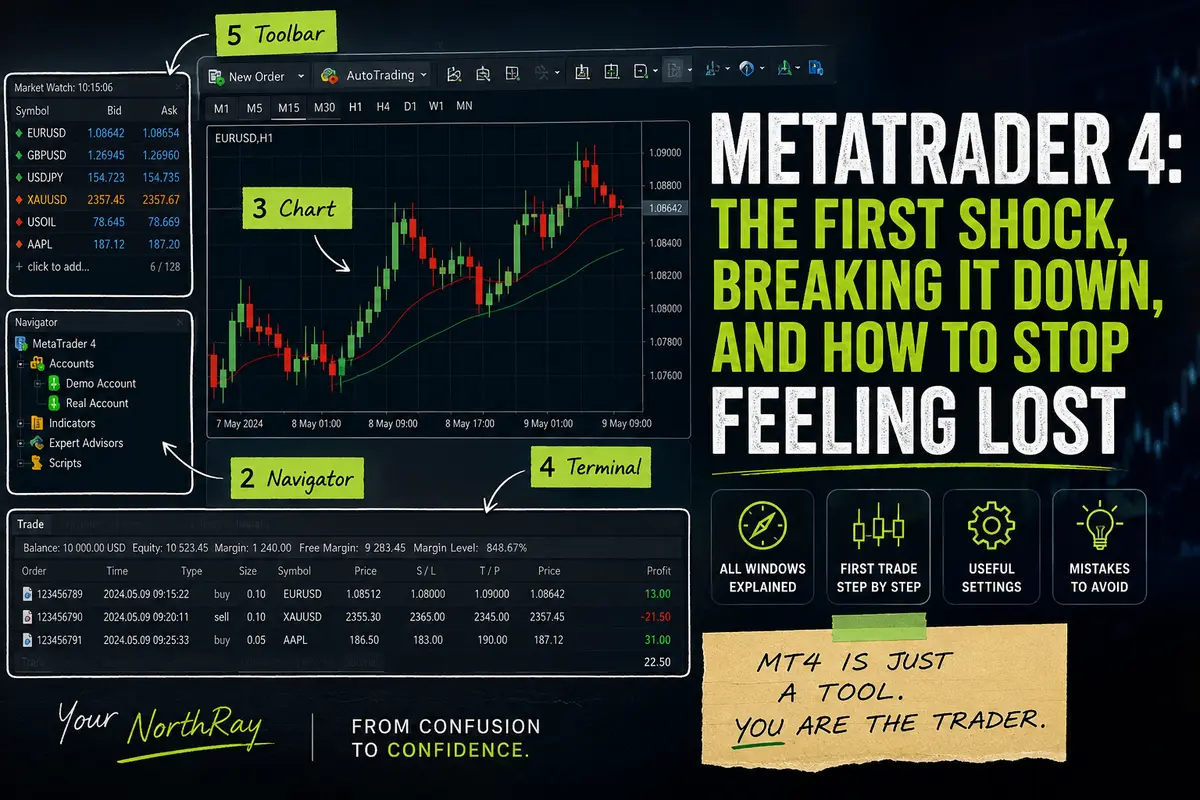
4. Terminal
— At the bottom of the screen.
— The most important window for trades.
— Tabs include: Trade (your open trades and orders), History (closed trades), Account (account information).
— What to do: you’ll be checking this constantly.
5. Toolbar
— The top panel with icons.
— Buttons for opening new orders, drawing tools (lines, levels), and timeframes (chart periods).
— What to do: over time you’ll naturally remember what each button does.
The Most Important Buttons and How to Use Them
I’ll only cover the things I actually use. I still ignore half the platform myself.🔥
Timeframes
— M1 (1 minute), M5 (5 minutes), M15, M30, H1 (1 hour), H4, D1 (daily).
— I started with H1 — one hour. The movement isn’t too fast or too slow.
— Advice: beginners should stay away from M1 and M5. Things move too quickly and your eyes will melt.
“New Order” Button
— On the toolbar. Or press F9 on your keyboard.
— Opens a window where you choose Buy or Sell, lot size, stop-loss, take-profit.
— My favorite button (when the trade is green).
Drawing Tools
— Horizontal line: used for support and resistance levels.
— Trend line: connect lows or highs.
— I use these constantly. The market without lines feels like a map without roads.
The “X” Button on Charts
— Beginners often close a chart and panic because they don’t know how to get it back.
— Don’t worry. If you close it: go to “Window” → “Tile Vertically” or simply drag the symbol from Market Watch back onto the chart area.
How to Open Your First Trade in MT4 (Step by Step)
I do this almost every day now. It’s muscle memory.🥇
Step 1
Choose a currency pair (or gold, or a stock) in Market Watch. Click it once.
Step 2
Press F9 (or click “New Order”).
Step 3
In the window that opens:
— Type: Buy (if you think price will rise) or Sell (if you think it will fall).
— Volume: choose your lot size. I started with 0.01.
— Stop Loss: set the price where the trade closes in a loss (so you don’t lose everything).
— Take Profit: set the price where the trade closes in profit.
— Comment: you can write “my first trade” or leave it blank.
Step 4
Click “Place.”
Step 5
Look down at the Trade tab. Your position is there now.
That’s it. You did it.
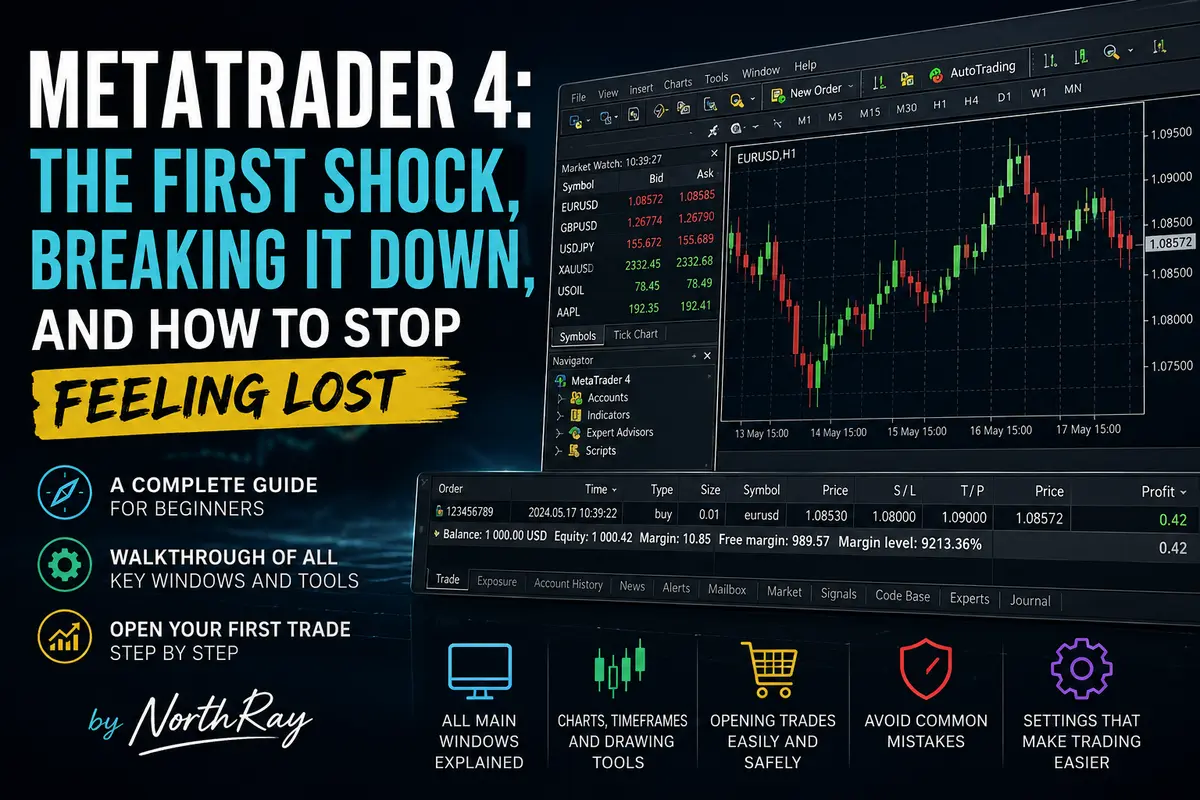
What I See in the Trade Tab (The Most Important Window)
I open the Terminal at the bottom and go to the Trade tab.🤝
There’s a line with my trade:
— Order: trade number (I ignore it).
— Symbol: EUR/USD, XAU/USD, AAPL, etc.
— Volume: my lot size.
— Price: entry price.
— Profit: current profit or loss.
— S/L: stop-loss (if set).
— T/P: take-profit (if set).
When the trade is green — I’m in profit. Red — I’m losing.
If I want to close the trade before S/L or T/P gets hit, I right-click the trade → “Close Order.”
My Favorite Settings (That Made Life Easier)
1. I Enabled “One Click Trading”
— Right-click the chart → “One Click Trading.”
— Now trades open with a single click, without extra windows.
— Dangerous for impulsive people. I use it carefully.
2. I Added a Grid to the Chart
— Right-click chart → “Properties” → “Grid” → enabled.
— Helps estimate distances between levels visually.
3. I Changed Candle Colors
— The white background was killing my eyes. I switched to a dark theme.
— “Properties” → “Colors” → dark background with green/red candles.
4. I Saved a Template
— I configured everything once: colors, lines, indicators.
— Right-click chart → “Template” → “Save Template.”
— Whenever I open a new chart, I instantly load my template.
My Biggest MT4 Mistakes (So You Don’t Repeat Them)
Mistake #1: I Didn’t Close a Trade Because I Didn’t Notice
— Forgot to set take-profit. The trade went green, then red, then closed at a loss.
— Solution: always set S/L and T/P.
Mistake #2: I Accidentally Closed a Chart and Didn’t Know How to Bring It Back
— Panic for no reason.
— Solution: drag the symbol from Market Watch onto empty space.
Mistake #3: I Opened a Huge Position by Accident
— MT4 remembers the previous lot size. I forgot to change 0.50 back to 0.01.
— Solution: always check volume before pressing “Place.”
Mistake #4: I Checked the Trade Every 30 Seconds
— Drove myself insane. Completely wrecked my nerves.
— Solution: set your levels and walk away from the screen.
What I Use in MT4 Right Now (My Core Setup)
— Timeframe: mostly H1. Sometimes M15.
— Indicators: only Moving Average for trend direction. Nothing crazy.
— Lines: horizontal support/resistance levels. Drawn manually.
— Volume: from 0.01 to 1.0 depending on confidence.
— S/L and T/P: always.
That’s enough for me. You don’t need 100 indicators. You need to understand what you’re doing.
What If I Still Feel Lost in MT4?
Believe me, that’s normal.💪
During my first week, I couldn’t even find trade history. Turns out it was in Terminal → Account (right-click → “History”).
My advice:
Open a demo account.
Spend half an hour clicking every button. Explore. Watch what happens. You won’t break anything.
Open 10 trades with 0.01 lots. Close them. Watch how the numbers change.
Then do it again.
After a couple of days, MT4 stops feeling scary. After a week, it starts feeling familiar.
The Main Takeaway
MetaTrader 4 is just software. There’s no magic in it. It doesn’t bite.
When I first opened it, I was terrified of clicking the wrong thing and “breaking everything.” But MT4 isn’t a spaceship. It’s basically a calculator with charts.
You can understand the basics in a couple of evenings. The rest is practice.
I still don’t know every function. But I know enough to trade, open positions, place stop-losses and take-profits.
And I’ll learn the rest along the way.😎
What’s Next
— I’m continuing to test gold, Apple, and indices.
— Diving deeper into MT4 settings.
— Next, maybe I’ll break down indicators — how they work and whether you even need them.
If you’re still afraid of MT4 — open it right now. Just look around. Click some buttons. On a demo account.
Nothing terrible will happen.
And if you get confused — reread this post. I went through the exact same thing.
Your NorthRay
(the guy who no longer pokes around MT4 like a blind kitten — now he pokes around confidently)🤫

Comments
No comments yet. Be the first to share your thoughts!
Authentication Required
You must be logged in to post a comment.